The cockpit is the screen half of yothere: a single page that shows the whole fleet at a glance and lets you clear what needs you. It is built around one idea, that most of the time your inbox is empty and the fleet is just working.
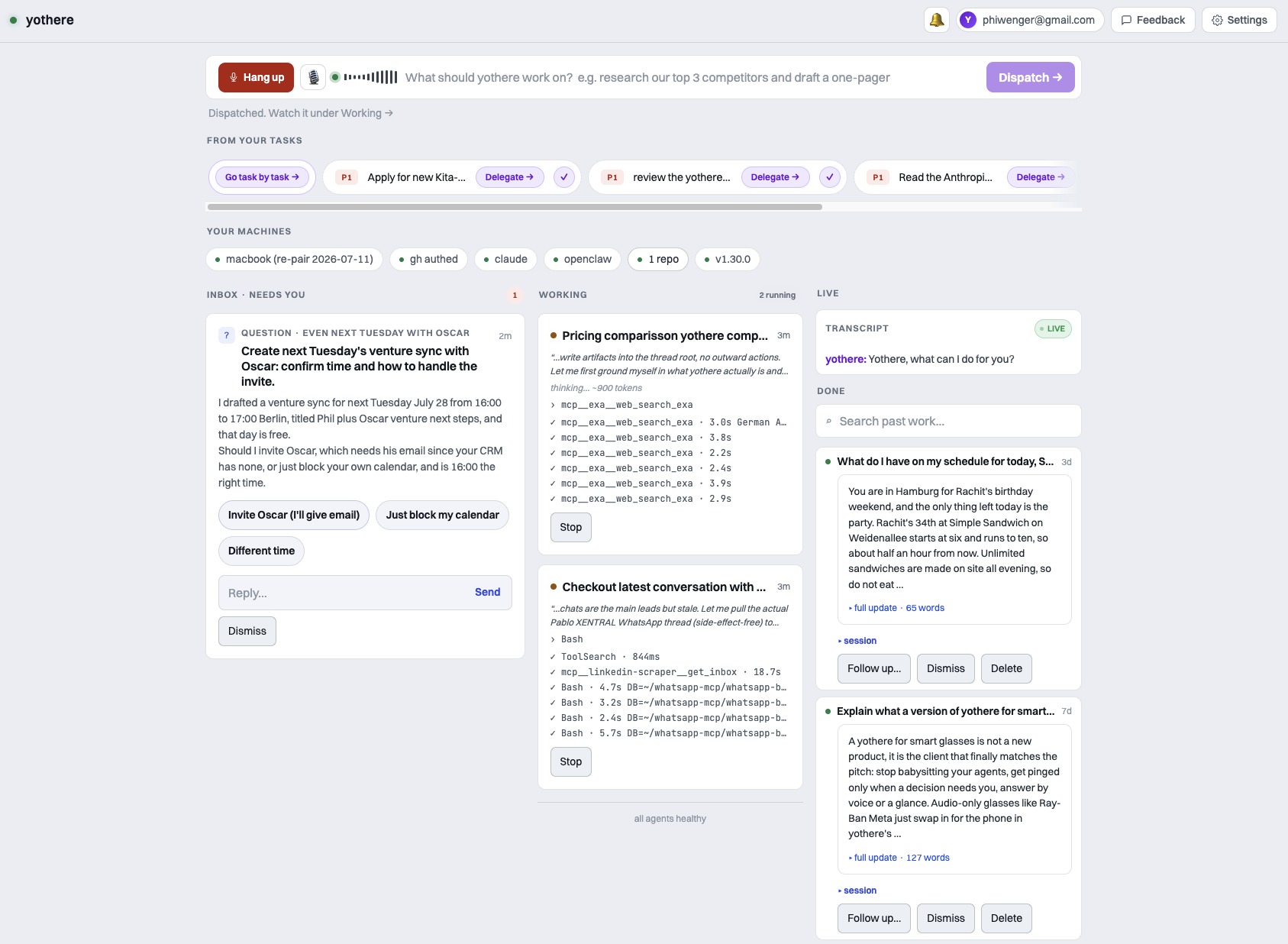
The board reads in priority order: the things that need you, then the things in flight, then the things already done. Voice and your task list sit alongside as companions to the board, not the frame.
Opening the cockpit
We host the cockpit. It lives at /overview on app.yothere.ai, so you open it in any browser you are logged in on, phone included. Your machine does not serve it and does not need to be reachable.
What your machine does do is the work: a paired machine leases each queued turn and runs it locally (see How it works). Nothing advances while it is off, and the cockpit says so rather than pretending.
At the top left, the header carries the workspace name. On the right sit the Connect button (voice), a feedback button, and, where phone alerts are available, a bell to opt into them.
Connect a machine
If no machine is paired, a banner sits under the command bar saying that no machine is connected and that dispatched tasks wait until one is running. That is the honest state, not an error: the control plane accepted the task and it queues, then drains the moment a machine reconnects.
The Connect a machine button on that banner opens the pairing panel. It holds no token and no ladder, just the two commands to run on the machine: pipx install yothere, then yothere login. The login prints a short code and an app.yothere.ai/activate link; open the link in the browser you are logged in on, check that it is the machine you meant, choose what it may do (new pairings default to read-only; everything is editable later in Settings → Machines), and Approve. A Copy the ask for your coding agent button copies those two commands as a plain request, safe to hand over because no secret and no agent-directed instruction is in it.
The panel watches the pairing loop close: as soon as your machine checks in, the status line flips to “Machine connected”. The full flow, in human prose, is in Onboarding.
The command bar
Type a task and dispatch it, the same as yothere spawn from the CLI. For example, “scan our top 3 competitors and draft a one-pager”. A hint under the bar reminds you that yothere drafts and asks before sending, so a dispatched task never fires an outward action without your say-so.
Code hails are dispatched from the CLI, on the machine that has the repo: yothere spawn --repo site "fix the layout shift on the pricing page". The workspace registry is local (it is what yothere workspace add writes on your box), so the repo binding is made there, not in the browser. The thread then builds in its own git worktree, on its own branch, and commits. No approval opens a push. The CLI reference has the full surface.
Two things the bar does that are easy to miss:
- Duplicate guard. If a near-identical task is already active, it does not spawn a second one. It offers View (scrolls to the live thread) and Dispatch anyway.
- Task reads answer locally. Typing “what’s next” or “go task by task” is answered from the cached task strip. Nothing is dispatched and nothing is spent.
Inbox (needs you)
The inbox is the point of the whole product. It holds only the threads blocked on you, and it is typed: the verb on each card matches the ask. When it is empty it reads:
Inbox zero. yothere's working.| Card | What it is | Verbs |
|---|---|---|
| Question | The thread hit a fork it cannot call | Suggested-answer chips (the recommended one is marked) plus a free-text reply |
| Draft | Something outward is written and waiting | Send, Edit draft, Discard |
| Plan | A plan to approve before it is executed | Approve, Revise, Reject |
| Result | Finished work the thread wants your eyes on | Looks good, Follow up |
| FYI | A notice, nothing to decide | Dismiss |
An FYI reaches the inbox like the rest and sorts below the blocking asks, so a result the thread just wants you to know about is not lost. It does not count against the inbox badge, because there is nothing to decide.
Discard on a draft closes the thread on the spot, with no worker turn, so it still works when the thread cannot be leased (for example when it is over its cost cap). Question and FYI cards carry a Dismiss button; the approval kinds do not, because their own verbs already resolve them.
You act from the card and the thread resumes on the next lease, no context-switch into a chat window.
Working
The working lane shows the threads currently advancing. Each card carries a live activity line: the tool the turn is in right now, a short timeline of the last few calls with timings, and elapsed time. A long turn streams its tool activity instead of sitting silent, so you can see a thread is progressing rather than stalled. The same live progress renders for a hosted session running under a voice call, so a task you dispatched by voice shows its work on the board while you are still on the phone.
A queued thread is drawn differently on purpose: a hollow dot instead of the running pulse, and a line saying it is waiting for your machine, with its position in the queue. Queued means no machine holds a lease, so nothing is executing. A queued job can be cancelled from the card; a leased one gets a Stop button that marks it “stopping,” discards the turn’s result when it lands, and parks the thread: a cooperative stop, not an instant kill.
Running out of steps is not a failure here. When a turn hits its step ceiling mid-task, the thread stays in this lane and simply takes another turn on the next tick, rather than stopping to ask you to type “continue”.
This lane is otherwise action-free: you watch, you do not babysit.
Past sessions
Finished sessions collect here as result cards. A long result renders as a structured card with the detail folded behind it; a short result renders plain. The lane is searchable via the “Search past work” box, and the first page renders with the rest folded behind “Show all”.
A settled card offers Follow up (an inline reply that resumes the thread), Dismiss (archives it out of the fleet), and, if the thread came from a delegated to-do, Mark task done (which writes the completion back to your task source).
Connect (voice)
Voice is hosted. Click Connect in the header and talk to your fleet in the browser. There is nothing to install on your machine, no phone number, no Twilio, and no key of yours anywhere in the path. The control plane mints a short-lived token per call, and hosted voice includes 120 minutes a day (resets daily).
On a call you can:
- Hail a new task. Speak it and a thread spawns, the same as typing it.
- Hear what is waiting on you. “What’s waiting on me?” reads your inbox back, item by item.
- Answer a blocked thread out loud. Your words go verbatim to that thread.
- Approve a draft by saying “send it”. That records a real approval, the exact one the Send button records. Say “discard” and it is dropped instead.
- Pick a finished thread back up. Refer to earlier work (“the pricing plan we did”) and it finds the finished thread, confirms which one, and resumes it.
- Mute yourself. Tap the mic button in the call strip, or just say “mute me”. It is a hard mute: the browser stops sending and the server drops anything that arrives anyway, so nothing you say while muted reaches the model. The button is the only way back (a muted mic cannot carry the word “unmute”), and if you talk into a dead mic the cockpit tells you so.
While the call boots, a status strip under the header tells you exactly where you are (“Requesting microphone”, “Connecting”, “Waiting for yothere to speak”). It clears on the first sound you actually hear, not on the transport connecting, because the two are not the same moment.
English is the default. Neutral Latin American Spanish is a per-tenant setting in /settings.
Transcript
When a call is live, the transcript panel streams the running conversation line by line, so the spoken exchange has a readable record you can scan while the call is in progress. The audio is not recorded.
The call runs on our media worker, so the transcript lives on the control plane only while the call runs and is deleted the moment it ends: the call content is not kept on our servers afterward (1.23.0 privacy). While a call is live, say what you would type into the cockpit; Privacy spells out exactly what is kept.
Your tasks
Alongside the board, a “From your tasks” strip shows your real open to-dos, discovered from your workspace by a turn on your own machine. It is there to fuel dispatch: Delegate on a chip prefills the command bar with that to-do so you can add context and hand it to the fleet. A chip you delegated this session flips to “View”, which scrolls to its thread. A chip from a connected task source also carries a tick that marks the to-do done where it actually lives.
With two or more to-dos, the strip offers Go task by task, a triage walkthrough. It steps you through the list one at a time (“Task 3 of 9”), each with Delegate, Done, and Skip, and finishes with a count of what you cleared. Typing “go task by task” in the command bar opens the same walkthrough.
If no task source is wired up yet, the strip prompts you to connect one. Discovery runs as a queued job on your paired machine, so it says so plainly when it is waiting for that machine rather than spinning a fake spinner.
Feedback
The speech-bubble button in the header opens a small capture for bugs, friction, and wishes. It posts straight to the yothere team. During the beta this is the fastest path from “this annoyed me” to “this is fixed”.
Install as an app
The cockpit is an installable progressive web app. It ships a web manifest and a service worker, so you can add it to a phone home screen and run it standalone.
The bell in the header is the web-push opt-in. Turn it on and yothere pings you when a thread needs you: the push deep-links to /overview?tid=<id>, which opens the cockpit scrolled to that exact ask and unfolds it out of “Show all” if it had already settled. One coalesced nudge, rate-limited, and quiet by default overnight. A thread you have already answered never pings you twice.
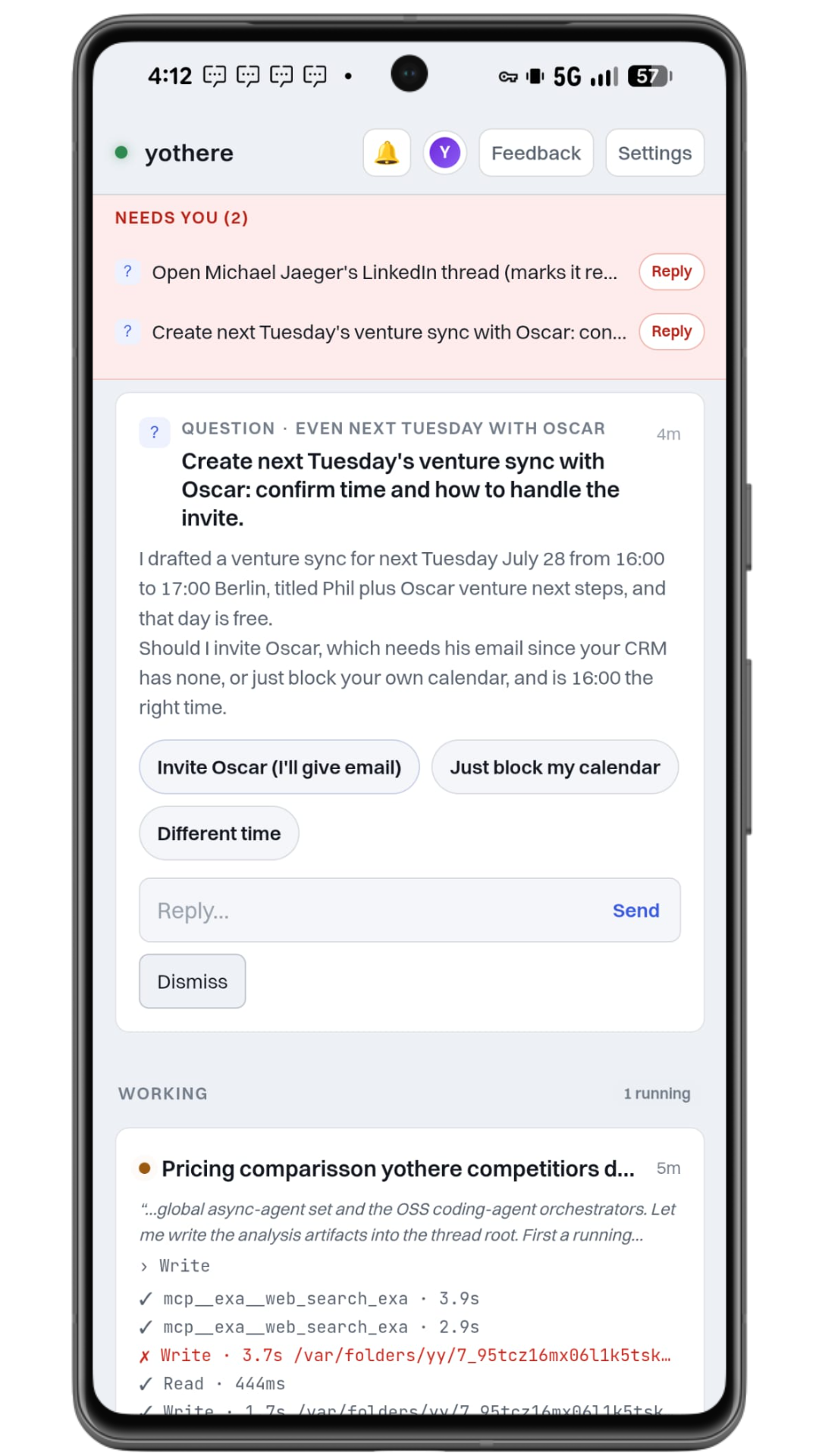
On a narrow screen the board also pins a “Needs you” strip to the top, one line per blocking ask, each tapping through to its card. This is the pocket path: your machine does the work, and a single tap answers the one thread that needed you, which keeps the other four moving.
What the cockpit does not do yet
There is a repo picker, just not a repo registration flow: click a machine’s repos chip in the capability strip to pin the next dispatch to one of its already-registered workspaces, but adding a new repo is CLI-only (yothere workspace add). Publishing has a button too: a finished code thread lands in the Inbox as a diff to review, and pressing Ship it pushes the branch and opens the PR as you.
Where it runs
The cockpit you use is the hosted one at app.yothere.ai. You log in, you see only your own fleet, and the queue survives your laptop closing.
The same page also renders in local single-user mode, where the CLI serves it on 127.0.0.1:8767 with no login. That path exists for development and for a quick local look at the board. It is not the product, and it is not what a paid account gets you. Every knob for both, including the auth and per-tenant seams, is in Configuration.